Solusi Backup Open-Source Postgres Terbaik di Tahun 2026
Adela · 28 April 2026
Backup adalah hal membosankan yang tidak pernah ingin Anda uji dengan cara yang sulit. Jika Anda menjalankan PostgreSQL di lingkungan produksi, Anda pasti sudah mengetahuinya. Kabar baiknya adalah ekosistem open-source memberi Anda beberapa pilihan yang solid, mulai dari binary CLI tunggal hingga UI web lengkap. Perbedaannya terletak pada bahasa pemrograman, lisensi, dukungan multi-database, dan seberapa banyak yang mereka minta dari Anda secara operasional.
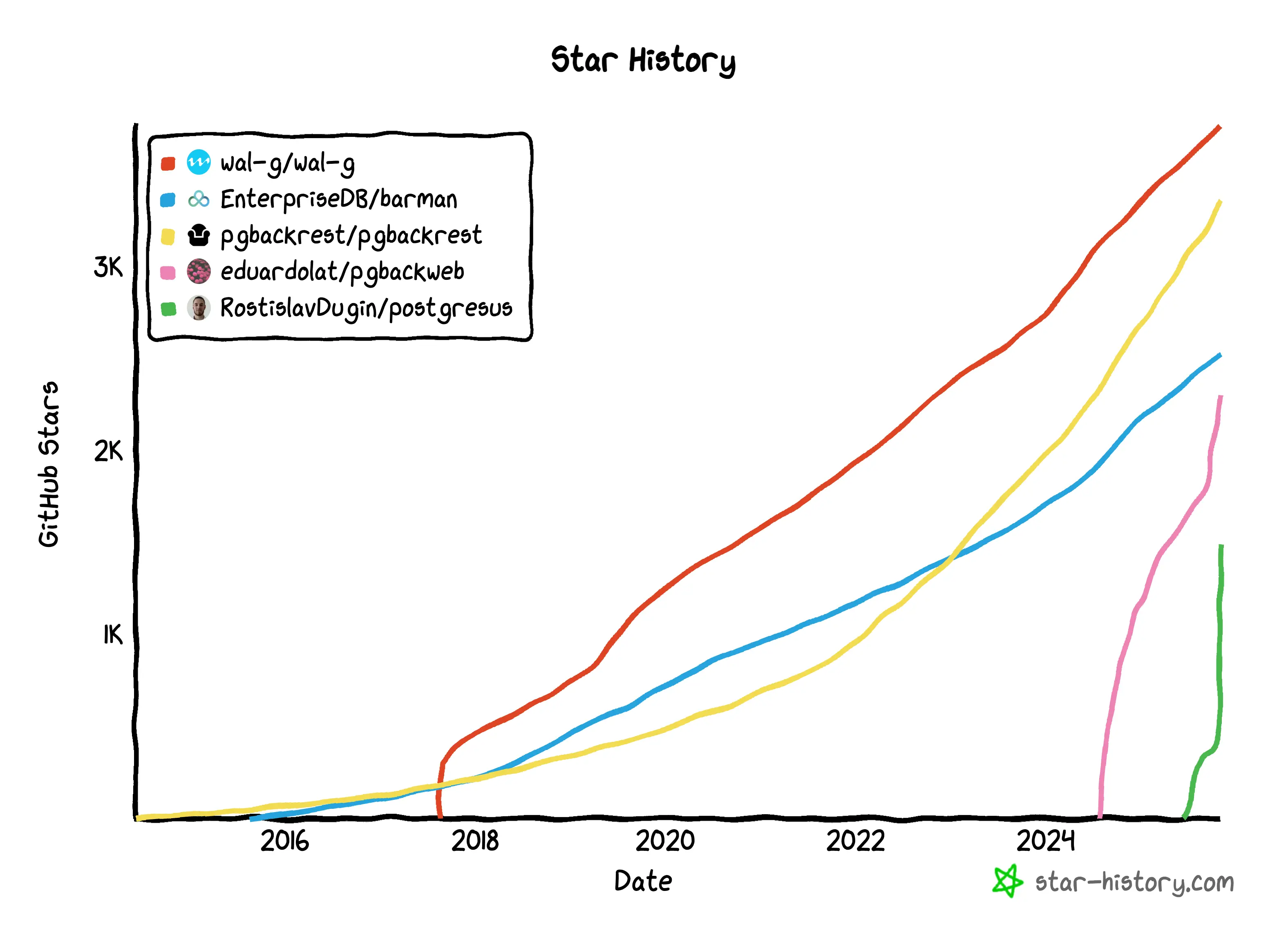
Berikut adalah ulasan enam di antaranya, beserta detail yang Anda butuhkan untuk memilih salah satunya: bahasa, lisensi, antarmuka, basis data yang didukung, dan kegunaan terbaik masing-masing. Grafik riwayat bintang memberikan gambaran kasar tentang daya tarik relatifnya.
Database
- GitHub: https://github.com/databasus/databasus
- Bahasa: Go + TypeScript
- Pengelola: Komunitas
- Lisensi: Apache 2.0
- Antarmuka: UI Web
- Basis data yang didukung: PostgreSQL, MySQL, MariaDB, MongoDB
- Cocok untuk: Tim yang membutuhkan solusi manajemen pencadangan berbasis web yang dihosting sendiri
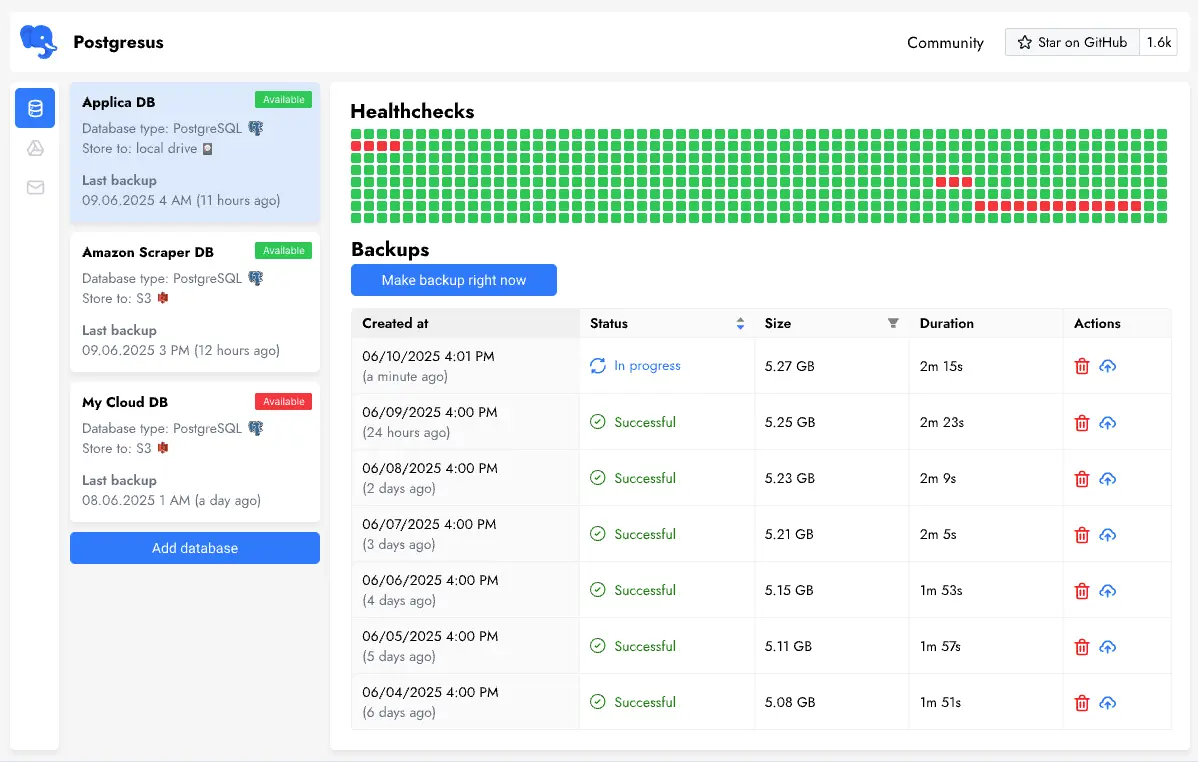
Databasus (yang sebelumnya bernama Postgresus) adalah alat manajemen pencadangan basis data yang dihosting sendiri dengan antarmuka pengguna web modern. Anda mendapatkan penjadwalan yang fleksibel (per jam, harian, mingguan, bulanan, atau cron), beberapa tujuan penyimpanan (S3, Google Drive, NAS, SFTP), enkripsi AES-256-GCM, dan fitur tim seperti kontrol akses berbasis peran dan pencatatan audit. Notifikasi dikirim melalui email, Telegram, Slack, Discord, dan webhook. Jika Anda ingin mengelola pencadangan dari browser daripada file konfigurasi, ini adalah titik masuk yang paling mudah digunakan.
WAL-G
- GitHub: https://github.com/wal-g/wal-g
- Bahasa: Go
- Pengelola: Komunitas
- Lisensi: Lisensi Apache 2.0
- Antarmuka: CLI
- Basis data yang didukung: PostgreSQL, MySQL/MariaDB, MS SQL Server, MongoDB (beta), Redis (beta)
- Cocok untuk: Lingkungan berbasis cloud dan multi-database
WAL-G adalah alat pengarsipan dan pemulihan untuk basis data di cloud, dan penerus spiritual dari WAL-E . Alat ini dirancang untuk performa tinggi, dengan kompresi paralel, enkripsi, dan integrasi penyimpanan cloud yang sebagian besar tidak mengganggu pekerjaan Anda. Dukungan multi-basis data adalah yang membedakannya: jika Anda menjalankan tumpukan campuran selain hanya Postgres, ini adalah satu-satunya alat yang akan mengikuti Anda di seluruh tumpukan tersebut.
pgBackRest
Tidak lagi dipelihara sejak April 2026. Repositori pgBackRest diarsipkan pada 27 April 2026 dan sekarang hanya dapat dibaca. Pengelola menyebutkan hilangnya sponsor perusahaan setelah Crunchy Data dijual, ditambah ketidakmampuan untuk menemukan model pendanaan yang berkelanjutan. v2.58.0 adalah rilis terakhir , tanpa perbaikan bug, patch keamanan, atau fitur lebih lanjut. Implementasi yang ada tetap berfungsi, tetapi pengaturan baru pada tahun 2026 ke atas harus mempertimbangkan alternatif di bawah ini. Sebuah fork komunitas mungkin akan muncul dengan nama baru.
- GitHub: https://github.com/pgbackrest/pgbackrest (diarsipkan)
- Bahasa: C
- Pengelola: Sebelumnya Crunchy Data (tidak lagi dikelola sejak April 2026)
- Lisensi: Lisensi MIT
- Antarmuka: CLI
- Basis Data yang Didukung: Hanya PostgreSQL
- Cocok untuk: Implementasi yang sudah ada saja (tidak disarankan untuk instalasi baru)
pgBackRest dirancang untuk kecepatan, keandalan, dan fleksibilitas: pencadangan penuh, diferensial, dan inkremental dengan pemrosesan paralel, kompresi, enkripsi, dan integrasi penyimpanan cloud. Perangkat lunak ini banyak digunakan di lingkungan produksi hingga awal tahun 2020-an dan masih berfungsi dengan baik pada versi 2.58.0, tetapi tidak lagi menerima kontribusi. Untuk hal-hal baru, WAL-G, Barman, atau pgmoneta adalah pilihan yang lebih aman.
Bartender
- GitHub: https://github.com/EnterpriseDB/barman
- Bahasa: Python
- Pengelola: EnterpriseDB (EDB)
- Lisensi: GNU GPL 3
- Antarmuka: CLI
- Basis Data yang Didukung: Hanya PostgreSQL
- Cocok untuk: Perusahaan yang membutuhkan manajemen pencadangan terpusat
Barman ( Backup and Recovery Manager ) adalah alat administrasi sumber terbuka untuk pemulihan bencana server PostgreSQL, yang ditulis dalam Python dan didukung oleh EnterpriseDB. Alat ini ditujukan untuk organisasi yang perlu menjalankan pencadangan jarak jauh dari beberapa server di lingkungan bisnis yang kritis: tujuannya adalah untuk mengurangi risiko dan memberikan alur kerja yang masuk akal bagi DBA selama pemulihan. Keberadaan perusahaan komersial di baliknya merupakan nilai tambah jika Anda peduli tentang siapa yang dapat Anda hubungi ketika terjadi masalah.
pgmoneta
- GitHub: https://github.com/pgmoneta/pgmoneta
- Bahasa: C
- Pengelola: Komunitas
- Lisensi: BSD-3-Clause
- Antarmuka: CLI (mode daemon)
- Basis Data yang Didukung: Hanya PostgreSQL
- Cocok untuk: Tim yang membutuhkan pencadangan berbasis daemon yang efisien dengan dukungan inkremental.
pgmoneta adalah solusi pencadangan dan pemulihan untuk PostgreSQL, yang dinamai menurut dewi memori Romawi. Ia berjalan sebagai daemon dan mendukung pencadangan penuh dan inkremental (PostgreSQL 14+), beberapa opsi kompresi (gzip, zstd, lz4, bzip2), enkripsi AES, dan pengiriman WAL. Ia dilengkapi dengan integrasi pemantauan Prometheus, manajemen jarak jauh, dan dukungan TLS v1.2+, serta dibangun di atas model berbasis proses menggunakan memori bersama dan libev untuk operasi jaringan yang efisien. Meskipun terkesan teknis, jika Anda menginginkan daemon C yang ringan dengan pencadangan inkremental dan metrik yang siap pakai, inilah jawabannya.
pgBackWeb
pgBackWeb membungkus pgBackRest, yang diarsipkan pada April 2026. pgBackWeb sendiri masih aktif, tetapi mesin dasarnya tidak lagi mendapatkan pembaruan. Jika Anda bergantung padanya dalam jangka panjang, perhatikan apakah ia bermigrasi ke backend yang berbeda.
- GitHub: https://github.com/eduardolat/pgbackweb
- Bahasa: Go + JavaScript
- Pengelola: Komunitas
- Lisensi: AGPL-3.0
- Antarmuka: UI Web
- Basis Data yang Didukung: PostgreSQL (melalui pgBackRest; lihat pemberitahuan di atas)
- Cocok untuk: Tim yang lebih menyukai manajemen visual pada penerapan pgBackRest yang sudah ada.
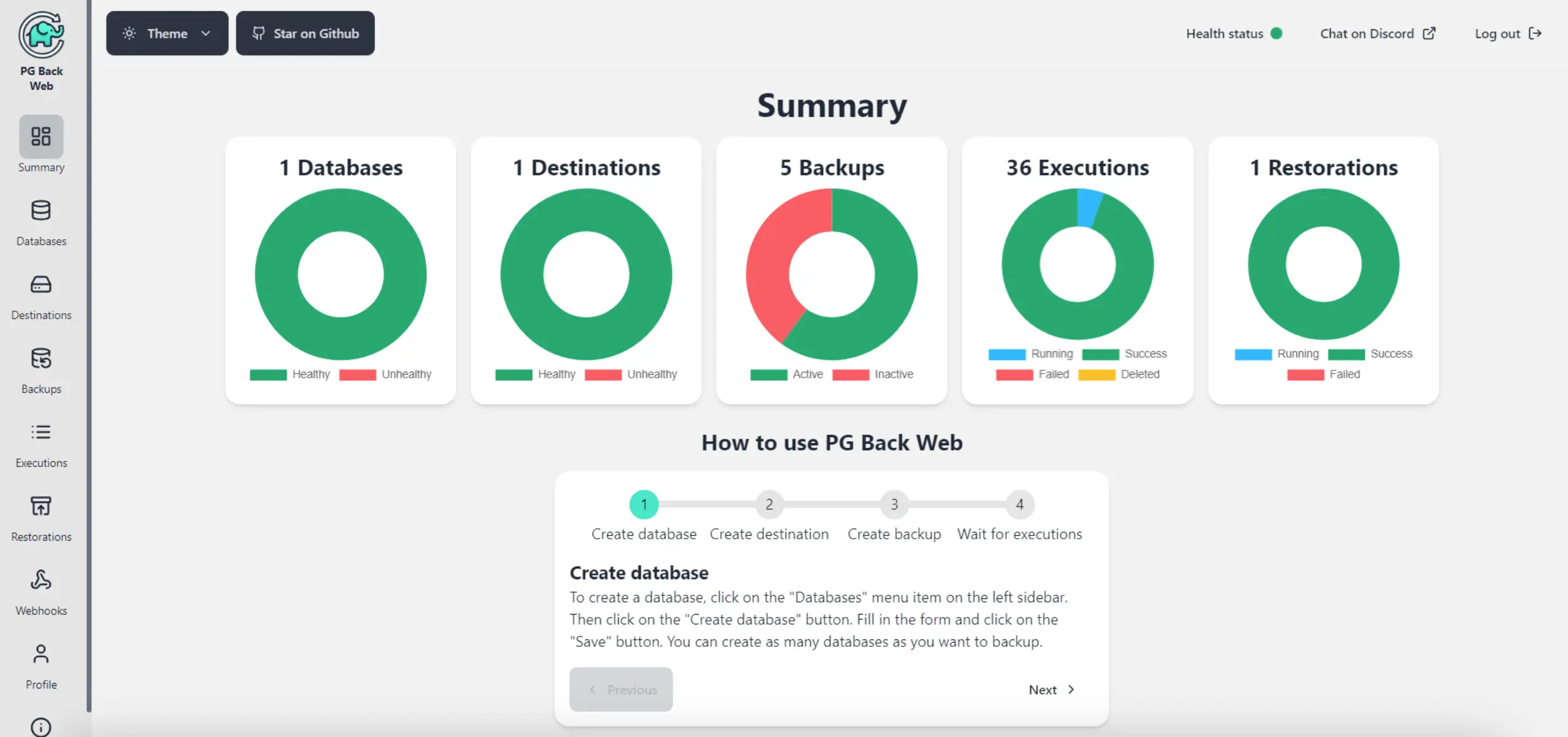
pgBackWeb menghadirkan dasbor web yang ramah pengguna di atas pgBackRest, dengan pemantauan visual, operasi pemulihan, dan penjadwalan. Ini sangat cocok untuk tim yang lebih kecil atau siapa pun yang lebih suka mengklik daripada menghafal flag CLI. Kekurangannya adalah seperti yang disebutkan di atas: ia mewarisi fitur pengarsipan pgBackRest, sehingga lebih cocok untuk deployment yang sudah ada daripada yang baru.
Tabel Perbandingan
| Alat | Bahasa | Lisensi | Antarmuka | Dukungan Multi-DB | Penyimpanan Cloud |
|---|---|---|---|---|---|
| Database | Go + TypeScript | Apache 2.0 | Antarmuka Pengguna Web | ✅ | ✅ |
| WAL-G | Lanjutkan | Apache 2.0 | CLI | ✅ | ✅ |
| Sandaran punggung pg ⚠️ | C | MIT | CLI | ❌ | ✅ |
| Bartender | Python | GNU GPL 3 | CLI | ❌ | ✅ |
| pgmoneta | C | BSD-3-Clause | CLI (daemon) | ❌ | ❌ |
| pgBackWeb | Go + JavaScript | AGPL-3.0 | Antarmuka Pengguna Web | ❌ | ✅ (via pgBackRest ⚠️) |
⚠️ pgBackRest tidak lagi dipelihara sejak April 2026. Lihat bagian pgBackRest untuk detailnya.
Memilih Alat yang Tepat
- Database adalah pilihan mudah jika Anda menginginkan UI web yang dihosting sendiri dan Anda menjalankan lebih dari sekadar Postgres.
- WAL-G adalah solusi serbaguna terkuat untuk pengaturan multi-database berbasis cloud. Direkomendasikan untuk penerapan PostgreSQL baru.
- pgBackRest kaya fitur dan telah teruji, tetapi tidak lagi dipelihara sejak April 2026. Cocok untuk instalasi yang sudah ada, tetapi tidak untuk instalasi baru.
- Barman cocok untuk lingkungan perusahaan dengan kepatuhan yang ketat dan preferensi terhadap alat yang didukung oleh vendor. Direkomendasikan untuk penerapan PostgreSQL baru yang membutuhkan manajemen terpusat.
- pgmoneta adalah opsi daemon ringan, dengan pencadangan inkremental dan pemantauan jika Anda tidak keberatan menggunakan bahasa C dan CLI.
- pgBackWeb layak digunakan jika Anda sudah menjalankan pgBackRest dan menginginkan GUI; untuk pengaturan baru, mesin yang sudah diarsipkan di baliknya mungkin perlu dipertimbangkan kembali.
Tidak ada pemenang tunggal di sini, hanya pertimbangan antara kesederhanaan, skalabilitas, dan seberapa banyak ekosistem yang Anda inginkan di balik alat tersebut. Untuk sebagian besar penerapan Postgres baru, WAL-G atau Barman adalah titik awal yang aman; dari sana, pilih berdasarkan skala Anda, strategi cloud Anda, dan seberapa nyaman tim Anda menggunakan baris perintah.
################################################
https://github.com/databasus/databasus

Databasus is a free, open source and self-hosted tool to backup PostgreSQL. Make backups with different storages (S3, Google Drive, FTP, etc.) and notifications about progress (Slack, Discord, Telegram, etc.). With a focus on Point-in-Time Recovery at low RPO/RTO








English • Русский • Español • Português • 中文 • Français
Features • Installation • Usage • License • Contributing


- Physical: file-level copy of the entire database cluster over PostgreSQL native incremental backups mechanism (read more)
- Full: a complete, self-contained copy of the cluster
- Incremental: stores only what changed since the previous full backup, so backups stay small and fast
- WAL streaming: continuously captures the database write stream, enabling Point-in-time recovery (PITR). Designed for disaster recovery and near-zero data loss
- Logical: native dump of the database in its engine-specific binary format (compressed, suitable for parallel restore)
- Flexible scheduling: hourly, daily, weekly, monthly or cron
- Precise timing: run backups at specific times (e.g., 4 AM during low traffic)
- Smart compression: 4-8x space savings with balanced compression (~20% overhead)
🧪 Restore verification (docs)
Databasus performs a real restore to confirm backups are usable, not just intact on disk or checksum check.
- Triggers: after each backup or on a flexible schedule (hourly, daily, weekly, monthly or cron)
- Real restore: spins up a database container, runs the restore and checks the restored size against the backup
- Report: lists every table with its row count
- Optional notifications: send the report or failure-only alerts through any configured notifier
- Time period: Keep backups for a fixed duration (e.g., 7 days, 3 months, 1 year)
- Count: Keep a fixed number of the most recent backups (e.g., last 30)
- GFS (Grandfather-Father-Son): Layered retention — keep hourly, daily, weekly, monthly and yearly backups independently for fine-grained long-term history (enterprises requirement)
- Size limits: Set per-backup and total storage size caps to control storage usage
🗄️ Multiple storage destinations (view supported)
- Local storage: Keep backups on your VPS/server
- Cloud storage: S3, Cloudflare R2, Google Drive, NAS, Dropbox, SFTP, Rclone and more
- Secure: All data stays under your control
📱 Notifications (view supported)
- Multiple channels: Email, Telegram, Slack, Discord, Teams, Mattermost, webhooks
- Real-time updates: Success and failure notifications
- Team integration: Perfect for DevOps workflows
🔒 Enterprise-grade security (docs)
- AES-256-GCM encryption: Enterprise-grade protection for backup files
- Zero-trust storage: Backups are encrypted and remain useless to attackers, so you can safely store them in shared storage like S3, Azure Blob Storage, etc.
- Encryption for secrets: Any sensitive data is encrypted and never exposed, even in logs or error messages
- Read-only user: Databasus uses a read-only user by default for backups and never stores anything that can modify your data
- Two-factor authentication: Password sign-in can require a six-digit code emailed to the account. Sign-in through Google or GitHub keeps relying on the provider's own checks
👥 Suitable for teams (docs)
- Workspaces: Group databases, notifiers and storages for different projects or teams
- Access management: Control who can view or manage specific databases with role-based permissions
- Audit logs: Track all system activities and changes made by users
- User roles: Assign viewer, member, admin or owner roles within workspaces
- OpenTelemetry logs: Export application and audit logs to an external system (by default they are also written to a local file)
- Designer-polished UI: Clean, intuitive interface crafted with attention to detail
- Dark & light themes: Choose the look that suits your workflow
- Mobile adaptive: Check your backups from anywhere on any device
- PostgreSQL: 14, 15, 16, 17 and 18 (physical and logical)
- MySQL: 5.7, 8.0, 8.4, 9 and 26 (logical only)
- MariaDB: 5.5, 10, 11, 12 and 13 (logical only)
- MongoDB: 4.2+, 5, 6, 7, 8 and 9 (logical only)
- Docker-based: Easy deployment and management
- Privacy-first: All your data stays on your infrastructure
- Open source: Apache 2.0 licensed, inspect every line of code
- Build-in SSH: Connect to your databasus via SSH tunnel
📦 Installation (docs)
You have four ways to install Databasus:
- Automated script (recommended)
- Simple Docker run
- Docker Compose setup
- Kubernetes with Helm

You have four ways to install Databasus: automated script (recommended), simple Docker run, or Docker Compose setup.
The installation script will:
- ✅ Install Docker with Docker Compose (if not already installed)
- ✅ Set up Databasus
- ✅ Configure automatic startup on system reboot
sudo apt-get install -y curl && \
sudo curl -sSL https://raw.githubusercontent.com/databasus/databasus/refs/heads/main/install-databasus.sh \
| sudo bashThe easiest way to run Databasus:
docker run -d \
  --name databasus \
  -p 4005:4005 \
  -v ./databasus-data:/databasus-data \
  --restart unless-stopped \
  databasus/databasus:latest
The same image lives on GitHub's registry — use ghcr.io/databasus/databasus:latest if Docker Hub rate-limits your pull.
This single command will:
- ✅ Start Databasus
- ✅ Store all data in
./databasus-datadirectory - ✅ Automatically restart on system reboot
Create a docker-compose.yml file with the following configuration:
services:
  databasus:
    container_name: databasus
    image: databasus/databasus:latest
    ports:
      - "4005:4005"
    volumes:
      - ./databasus-data:/databasus-data
    restart: unless-stopped
    healthcheck:
      test: ["CMD", "databasus", "healthcheck"]
      interval: 30s
      timeout: 5s
      retries: 3
      start_period: 60s
Then run:
docker compose up -dFor Kubernetes deployments, install directly from the OCI registry.
Add --set image.repository=ghcr.io/databasus/databasus to any of the commands below to pull image from GHCR instead of Docker Hub.
With ClusterIP + port-forward (development/testing):
helm install databasus oci://ghcr.io/databasus/charts/databasus \
  -n databasus --create-namespace
kubectl port-forward svc/databasus-service 4005:4005 -n databasus
# Access at http://localhost:4005With LoadBalancer (cloud environments):
helm install databasus oci://ghcr.io/databasus/charts/databasus \
  -n databasus --create-namespace \
  --set service.type=LoadBalancer
kubectl get svc databasus-service -n databasus
# Access at http://<EXTERNAL-IP>:4005With Ingress (domain-based access):
helm install databasus oci://ghcr.io/databasus/charts/databasus \
  -n databasus --create-namespace \
  --set ingress.enabled=true \
  --set ingress.hosts[0].host=backup.example.com
For more options (NodePort, TLS, HTTPRoute for Gateway API), see the Helm chart README.
- Create the first account: Navigate to
http://localhost:4005and sign up. The first account created on an instance administers it - Add your first database for backup: Click "New Database" and follow the setup wizard
- Configure schedule: Choose from hourly, daily, weekly, monthly or cron intervals
- Set database connection: Enter your database credentials and connection details
- Choose storage: Select where to store your backups (local, S3, Google Drive, etc.)
- Configure retention policy: Choose time period, count or GFS to control how long backups are kept
- Add notifications (optional): Configure email, Telegram, Slack, Mattermost or webhook notifications
- Save and start: Databasus will validate settings and begin the backup schedule
🔑 Resetting password (docs)
If you need to reset the password, you can use the built-in password reset command:
docker exec -it databasus ./main --new-password="YourNewSecurePassword123" --email="owner@example.com"Replace owner@example.com with the actual email address of the account whose password you want to reset.
If you do not remember which address administers the instance, list the administrator accounts:
docker exec -it databasus ./main --list-adminsThe output names every administrator account with its email address, display name, creation date and active state, and marks the one the instance recognizes as its administrator. It prints no password material.
To provision an account without signing up in the browser, for example from a deployment script, create it from the console:
docker exec -it databasus ./main --create-user --email="ops@example.com" --password="YourSecurePassword123" --role=admin--role is admin or member, the password needs at least 8 characters, and --name optionally sets the display name. On an instance that holds no account yet, the first account must use --role=admin and administers the instance. Running the command again for the same account changes nothing, so a deployment can run it on every rollout; rotate the password with --new-password.
After installation, it is also recommended to backup your Databasus itself or, at least, to copy secret key used for encryption (30 seconds is needed). So you are able to restore from your encrypted backups if you lose access to the server with Databasus or it is corrupted.
Databasus works with sensitive data, so preventing vulnerabilities, unauthorised access and data leaks is a primary concern. We invest in this on both sides of the system: in the code itself (permission checks, encryption, careful handling of secrets) and in the infrastructure around it (dependency analysis, CVE response, DevSecOps best practices). The pipeline below runs automatically on every commit and PR. No single layer is enough on its own, but together they reduce the chance of vulnerable code, unsafe dependencies, broken images, or non-restorable backups reaching a release.
For static analysis we combine several independent passes. CodeQL scans the full codebase for security issues. CodeRabbit reviews every PR and runs gitleaks for secret scanning and semgrep for security rules inline. Dockerfiles and CI workflows get extra rules of their own (pinned action references, least-privilege permissions, suspicious base images), so insecure patterns are flagged before they ever merge. On top of these per-PR checks, Codex Security from OpenAI runs regular, deeper audits of the whole codebase. It's a separate program that catches architectural and cross-cutting issues narrow PR-time scans can miss.
On the dependency side, Dependabot watches all of our dependencies against the GitHub Advisory Database and surfaces CVEs within minutes of publication. Updates run through a cooldown so newly-published versions get a chance to mature before we adopt them. This is a deliberate defence against compromised-package incidents like supply-chain attack. The Dependency Review Action blocks any PR that introduces a new HIGH or CRITICAL CVE outright.
Container images are scanned with Trivy on every build. A separate Trivy pass on the Dockerfile catches misconfigurations before they make it into an image. All GitHub Actions are pinned to full commit SHAs rather than floating tags like @v4 or @main, which have been an active attack vector in 2025. Workflows default to least-privilege permissions and only elevate per-job when genuinely needed.
Critical paths are covered by both unit and integration tests, run against real database containers for every supported engine and major version. Restore is the path that matters most for a backup tool, so we test it explicitly: every PR runs full backup-then-restore cycles against those same real containers, verifying that backups can actually be restored end-to-end, not just written successfully. The rest of the CI/CD pipeline runs lint, type-check, the full test suite, image smoke tests and multi-architecture builds on every PR. A release only ships if all of it passes.
Found a vulnerability? Report it via the GitHub Security tab. See SECURITY.md. Security reports are the highest-priority work queue. For runtime application security (AES-256-GCM at rest, zero-trust storage, encrypted secrets, read-only DB user by default) see Enterprise-grade security in the Features section above.
This project is licensed under the Apache 2.0 License - see the LICENSE file for details
Contributions are welcome! Read the contributing guide for more details, priorities and rules. If you want to contribute but don't know where to start, message me on Telegram @rostislav_dugin
Also you can join our large community of developers, DBAs and DevOps engineers on Telegram @databasus_community.
There have been questions about AI usage in project development in issues and discussions. As the project focuses on security, reliability and production usage, it's important to explain how AI is used in the development process.
First of all, we are proud to say that Databasus has been accepted into both Claude for Open Source by Anthropic and Codex for Open Source by OpenAI in March 2026. For us it is one more signal that the project was recognized as important open-source software and was as critical infrastructure worth supporting independently by two of the world's leading AI companies. Read more at databasus.com/faq.
Despite of this, we have the following rules how AI is used in the development process:
AI is used as a helper for:
- verification of code quality and searching for vulnerabilities
- cleaning up and improving documentation, comments and code
- assistance during development
- double-checking PRs and commits after human review
- additional security analysis of PRs via Codex Security
AI is not used for:
- writing entire code
- "vibe code" approach
- code without line-by-line verification by a human
- code without tests
So AI is just an assistant and a tool for developers to increase productivity and ensure code quality. The work is done by developers.
Moreover, it's important to note that we do not differentiate between bad human code and AI vibe code. There are strict requirements for any code to be merged to keep the codebase maintainable.
Even if code is written manually by a human, it's not guaranteed to be merged. Vibe code is not allowed at all and all such PRs are rejected by default (see contributing guide).
The engineering safeguards behind these rules (CI, static analysis, dependency scanning, test coverage and vulnerability response) are documented in Security & reliability engineering above.
